All posts by Admin

A MOUNTAIN CLIMBER

Mountain climber

The story tells about a mountain climber, who wanted to climb the highest mountain.
He began his adventure after many years of preparation, but since he wanted the glory just for himself, he decided to climb the mountains alone.
The night fell heavily in the heights of the mountain, and the man could not see anything. All was black. Zero visibility, and the moon and the stars were covered by the clouds As he was climbing…only a few feet away from the top of the mountain, he slipped and fell into the air.
Falling at a great speed the climber could only see black spots as he went down, and the terrible sensation of being sucked by gravity. He kept falling … and in those moments of great fear, it came to his mind all the good and bad episodes of his life, he was thinking now about how close death was getting, when all of a sudden he felt the rope tied to pulled his waist and pulled him very hard. His body was hanging in the air…
Only the rope was holding him. And in that moment of stillness “he had no other choice but to scream: “Help me God…”
All of a sudden, a deep voice coming from the sky answered want do you want me to do?

“Save me God!”
“Do you really think I can save you?”
“Of course I believe you can.”
Then cut the rope tied to your waist”
There was a moment of silence…and the man decided to hold on the rope with all his strength. The rescue team tells that the next day a climber was found dead and frozen. His body was hanging from a rope, his hands holding tight to it, only three feet away from the ground

THE TORTOISE THE HARE

The Tortoise and the Hare
A speedy hare lived in the woods. She was always bragging to the other animals about how fast she could run. The animals grew tired of listening to the hare. So one day, the tortoise walked slowly up to her and challenged her to a race. The hare howled with laughter. “Race you? I can run circles around you!” the hare said. But the tortoise didn’t budge. “OK, Tortoise. You want a race? You’ve got it! This will be a piece of cake.” The animals gathered to watch the big race. A whistle blew, and they were off. The hare sprinted down the road while the tortoise crawled away from the starting line. The hare ran for a while and looked back. She could barely see the tortoise on the path behind her. Certain she’d win the race, the hare decided to rest under a shady tree. The tortoise came plodding down the road at his usual slow pace. He saw the hare, who had fallen asleep against a tree trunk. The tortoise crawled right on by. The hare woke up and stretched her legs. She looked down the path and saw no sign of the tortoise. “I might as well go win this race,” she thought. As the hare rounded the last curve, she was shocked by what she saw. The tortoise was crossing the finish line! The tortoise had won the race!
The confused hare crossed the finish line. “Wow, Tortoise,” the hare said, “I really thought there was no way you could beat me.” The tortoise smiled. “I know. That’s why I won.”

FISH MAN

A man called home to his wife and said, “Honey I have been asked to go fishing up in Canada with my boss & several of his Friends. We’ll be gone for a week. This is a good opportunity for me to get that Promotion I’ve been wanting, so could you please pack enough Clothes for a week and set out my rod and fishing box, we’re leaving from the office & I will swing by the house to pick my things up” “Oh! Please pack my new blue silk pajamas.” The wife thinks this sounds a bit fishy but being the good wife she is, did exactly what her husband asked. The following Weekend he came home a little
tired but otherwise looking good. The wife welcomed him home and asked if he caught many fish? He said, “Yes! Lots of Salmon, some Bluegill, and a few Swordfish. But why didn’t you pack my new blue silk pajamas like I asked you to Do?” The wife replied, “I did. They’re in your fishing box.

THE LUMP GOLD

Paul was a very rich man, but he never spent any of his money.

He was scared that someone would steal it.

He pretended to be poor and wore dirty old clothes.

People laughed at him, but he didn’t care.

He only cared about his money.

One day, he bought a big lump of gold.

He hid it in a hole by a tree.

Every night, he went to the hole to look at his treasure.

He sat and he looked.

‘No one will ever find my gold!’ he said.

But one night, a thief saw Paul looking at his gold.

And when Paul went home, the thief picked up the lump of gold, slipped it into his bag and ran away!

The next day, Paul went to look at his gold, but it wasn’t there.

It had disappeared!

Paul cried and cried!

He cried so loud that a wise old man heard him.

He came to help.

Paul told him the sad tale of the stolen lump of gold.

‘Don’t worry,’ he said.

‘Get a big stone and put it in the hole by the tree.’

‘What?’ said Paul.

‘Why?’

‘What did you do with your lump of gold?’

‘I sat and looked at it every day,’ said Paul.

‘Exactly,’ said the wise old man.

‘You can do exactly the same with a stone.’

Paul listened, thought for a moment and then said, ‘Yes, you’re right. I’ve been very silly. I don’t need a lump of gold to be happy!’

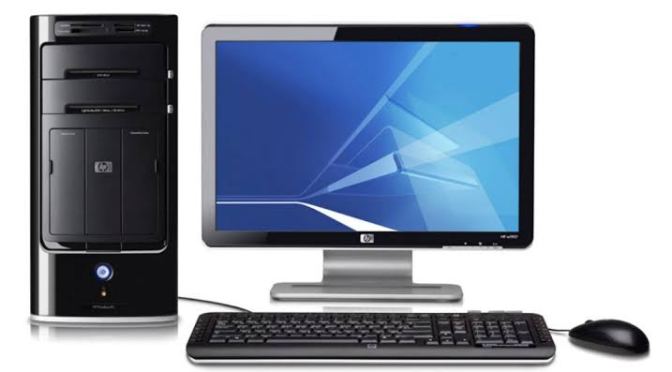
COMPUTER PARTS FULL FROM

Computer Parts Full Form

¤ LCD = LIQUID CRYSTAL DISPLAY.
¤ LED = LIGHT-EMITTING DIODE
¤ CRT = CATHODE RAY TUBE
¤ CPU = CENTRAL PROCESSING UNIT
¤ UPS = UNINTERRUPTIBLE POWER SUPPLY

¤ Computer Full Form Name:
C-COMMON

O-OPERATING

M-MACHINE

P-PARTICULARLY

U-USED FOR

T-TECHNICAL

E-EDUCATIONAL AND

R-RESEARCH.

¤ FULL FORM OF PARTS OF COMPUTER :
Computer has different type of parts. They are divided in two categories
1) essential

2) optional.

Essential parts includes:
1) CPU – Central Processing Unit: Which is the collection of following parts
A) Mother Board
B) RAM:-Random Access Memory
C) SMPS:-Switch Mode Power Supply
D) HDD:-Hard Disk Drive
E) FDD:-Floppy Disk Drive (now outdated)
F) CD (Compact Disc)ROM (Read Only Memory)Drive
G) FDD & HDD cables
H) Cooling fan (Optional).

2) Input Devices: – Monitor (Just like as TV), Key Board, Mouse

3) Output Devices: – Monitor, Printer,
Speakers ( now a days it is essential)

Optional parts:
1) Scanners
2) Web cam (Camera)
3) USB (Universal Serial Bus) one device is required which is UPS (Uninterruptible Power
Supply) actually it is not a part of Computer but for fluent working of computer it is essential.

PRESS THESE BUTTONS ON YOUR KEYBOARD TO USE FACEBOOK FASTER

You can press these buttons on your keyboard to use Facebook faster.
j , k — Scroll between News Feed stories
p — Post a new status
l — Like or unlike the selected story
c — Comment on the selected story
s — Share the selected story
o — Open attachment of the selected story
enter — See More of the selected story
/ — Search
q — Search chat contacts
? — Show this help dialog
Internet Explorer for PC: Alt + # then Enter
Firefox for PC: Shift + Alt + #
Safari for Mac: Ctrl + #
Firefox for Mac: Ctrl + #
Chrome: Ctrl + Alt + #
— Help
— Home
— Timeline
— Friends
— Inbox
— Notifications
— Settings
— Activity Log
— About
— Terms
— New Message

IMPORTANT NOTES ABOUT DATA UNITS

DID YOU KNOW:
Bit:
A Bit is the smallest unit of data that a computer uses. It can be used to represent two states of information, such as Yes or No.

Byte:
A Byte is equal to 8 Bits. A Byte can represent 256 states of information, for example, numbers or a combination of numbers and letters. 1 Byte could be equal to one character. 10 Bytes could be equal to a word. 100 Bytes would equal an average sentence.

Kilobyte:
A Kilobyte is approximately 1,000 Bytes, actually 1,024 Bytes depending on which definition is used. 1 Kilobyte would be equal to this paragraph you are reading, whereas 100 Kilobytes would equal an entire page.

Megabyte:
A Megabyte is approximately 1,000 Kilobytes. In the early days of computing, a Megabyte was considered to be a large amount of data. These days with a 500 Gigabyte hard drive on a computer being common, a Megabyte doesn’t seem like much anymore. One of those old 3-1/2 inch floppy disks can hold 1.44 Megabytes or the equivalent of a small book. 100 Megabytes might hold a couple volumes of Encyclopedias. 600 Megabytes is about the amount of data that will fit on a CD-ROM disk.

Gigabyte:
A Gigabyte is approximately 1,000 Megabytes. A Gigabyte is still a very common term used these days when referring to disk space or drive storage. 1 Gigabyte of data is almost twice the amount of data that a CD-ROM can hold. But it’s about one thousand times the capacity of a 3-1/2 floppy disk. 1 Gigabyte could hold the contents of about 10 yards of books on a shelf. 100 Gigabytes could hold the entire library floor of academic journals.

Terabyte:
A Terabyte is approximately one trillion bytes, or 1,000 Gigabytes. There was a time that I never thought I would see a 1 Terabyte hard drive, now one and two terabyte drives are the normal specs for many new computers. To put it in some perspective, a Terabyte could hold about 3.6 million 300 Kilobyte images or maybe about 300 hours of good quality video. A Terabyte could hold 1,000 copies of the Encyclopedia Britannica. Ten Terabytes could hold the printed collection of the Library of Congress. That’s a lot of data.

Petabyte:
A Petabyte is approximately 1,000 Terabytes or one million Gigabytes. It’s hard to visualize what a Petabyte could hold. 1 Petabyte could hold approximately 20 million 4-door filing cabinets full of text. It could hold 500 billion pages of standard printed text. It would take about 500 million floppy disks to store the same amount of data.

WINDOWS SYSTEM KEY COMBINATIONS

Windows system key combinations;

F1: Help
CTRL+ESC: Open Start menu
ALT+TAB: Switch between open programs
ALT+F4: Quit program
SHIFT+DELETE: Delete item permanently
Windows Logo+L: Lock the computer (without using CTRL+ALT+DELETE)

Windows program key combinations

CTRL+C: Copy
CTRL+X: Cut
CTRL+V: Paste
CTRL+Z: Undo
CTRL+B: Bold
CTRL+U: Underline
CTRL+I: Italic

Mouse click/keyboard modifier combinations for shell objects

SHIFT+right click: Displays a shortcut menu containing alternative commands
SHIFT+double click: Runs the alternate default command (the second item on the menu)
ALT+double click: Displays properties
SHIFT+DELETE: Deletes an item immediately without placing it in the Recycle Bin

General keyboard-only commands

F1: Starts Windows Help
F10: Activates menu bar options
SHIFT+F10 Opens a shortcut menu for the selected item (this is the same as right-clicking an object
CTRL+ESC: Opens the Start menu (use the ARROW keys to select an item)
CTRL+ESC or ESC: Selects the Start button (press TAB to select the taskbar, or press SHIFT+F10 for a context menu)
CTRL+SHIFT+ESC: Opens Windows Task Manager
ALT+DOWN ARROW: Opens a drop-down list box
ALT+TAB: Switch to another running program (hold down the ALT key and then press the TAB key to view the task-switching window)
SHIFT: Press and hold down the SHIFT key while you insert a CD-ROM to bypass the automatic-run feature
ALT+SPACE: Displays the main window’s System menu (from the System menu, you can restore, move, resize, minimize, maximize, or close the window)
ALT+- (ALT+hyphen): Displays the Multiple Document Interface (MDI) child window’s System menu (from the MDI child window’s System menu, you can restore, move, resize, minimize, maximize, or close the child window)
CTRL+TAB: Switch to the next child window of a Multiple Document Interface (MDI) program
ALT+underlined letter in menu: Opens the menu
ALT+F4: Closes the current window
CTRL+F4: Closes the current Multiple Document Interface (MDI) window
ALT+F6: Switch between multiple windows in the same program (for example, when the Notepad Find dialog box is displayed, ALT+F6 switches between the Find dialog box and the main Notepad window)

Shell objects and general folder/Windows Explorer shortcuts

For a selected object:
F2: Rename object
F3: Find all files
CTRL+X: Cut
CTRL+C: Copy
CTRL+V: Paste
SHIFT+DELETE: Delete selection immediately, without moving the item to the Recycle Bin
ALT+ENTER: Open the properties for the selected object
To copy a file

Press and hold down the CTRL key while you drag the file to another folder.
To create a shortcut

Press and hold down CTRL+SHIFT while you drag a file to the desktop or a folder.
General folder/shortcut control

F4: Selects the Go To A Different Folder box and moves down the entries in the box (if the toolbar is active in Windows Explorer)
F5: Refreshes the current window.
F6: Moves among panes in Windows Explorer
CTRL+G: Opens the Go To Folder tool (in Windows 95 Windows Explorer only)
CTRL+Z: Undo the last command
CTRL+A: Select all the items in the current window
BACKSPACE: Switch to the parent folder
SHIFT+click+Close button: For folders, close the current folder plus all parent folders
Windows Explorer tree control

Numeric Keypad *: Expands everything under the current selection
Numeric Keypad +: Expands the current selection
Numeric Keypad -: Collapses the current selection.
RIGHT ARROW: Expands the current selection if it is not expanded, otherwise goes to the first child
LEFT ARROW: Collapses the current selection if it is expanded, otherwise goes to the parent
Properties control

CTRL+TAB/CTRL+SHIFT+TAB: Move through the property tabs
Accessibility shortcuts

Press SHIFT five times: Toggles StickyKeys on and off
Press down and hold the right SHIFT key for eight seconds: Toggles FilterKeys on and off
Press down and hold the NUM LOCK key for five seconds: Toggles ToggleKeys on and off
Left ALT+left SHIFT+NUM LOCK: Toggles MouseKeys on and off
Left ALT+left SHIFT+PRINT SCREEN: Toggles high contrast on and off
Microsoft Natural Keyboard keys

Windows Logo: Start menu
Windows Logo+R: Run dialog box
Windows Logo+M: Minimize all
SHIFT+Windows Logo+M: Undo minimize all
Windows Logo+F1: Help
Windows Logo+E: Windows Explorer
Windows Logo+F: Find files or folders
Windows Logo+D: Minimizes all open windows and displays the desktop
CTRL+Windows Logo+F: Find computer
CTRL+Windows Logo+TAB: Moves focus from Start, to the Quick Launch toolbar, to the system tray (use RIGHT ARROW or LEFT ARROW to move focus to items on the Quick Launch toolbar and the system tray)
Windows Logo+TAB: Cycle through taskbar buttons
Windows Logo+Break: System Properties dialog box
Application key: Displays a shortcut menu for the selected item
Microsoft Natural Keyboard with IntelliType software installed

Windows Logo+L: Log off Windows
Windows Logo+P: Starts Print Manager
Windows Logo+C: Opens Control Panel
Windows Logo+V: Starts Clipboard
Windows Logo+K: Opens Keyboard Properties dialog box
Windows Logo+I: Opens Mouse Properties dialog box
Windows Logo+A: Starts Accessibility Options (if installed)
Windows Logo+SPACEBAR: Displays the list of Microsoft IntelliType shortcut keys
Windows Logo+S: Toggles CAPS LOCK on and off
Dialog box keyboard commands

TAB: Move to the next control in the dialog box
SHIFT+TAB: Move to the previous control in the dialog box
SPACEBAR: If the current control is a button, this clicks the button. If the current control is a check box, this toggles the check box. If the current control is an option, this selects the option.


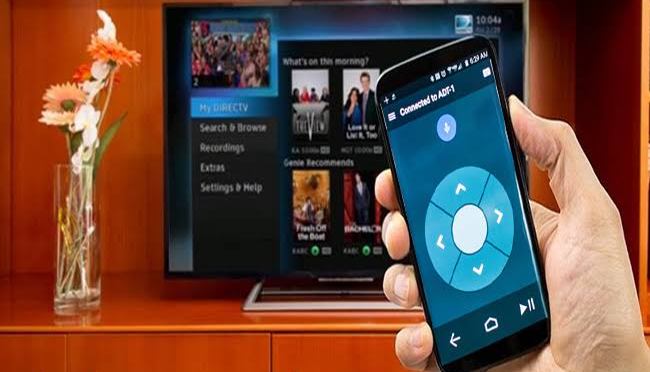
HOW TO USE YOUR PHONE AS A REMOTE CONTROL

Set up the remote control app
Download and install the Android TV Remote Control app on your phone or tablet. You can also search for “Android TV Remote Control” on Google Play.
Make sure that your phone or tablet is on the same Wi-Fi network as your Android TV.
Open the Android TV Remote Control app on your phone or tablet.
In the app, you’ll see your Android TV listed. Touch the name.
On your TV screen, you’ll see a PIN. Enter this PIN on your phone or tablet.
Then touch Pair.